
Clone anything
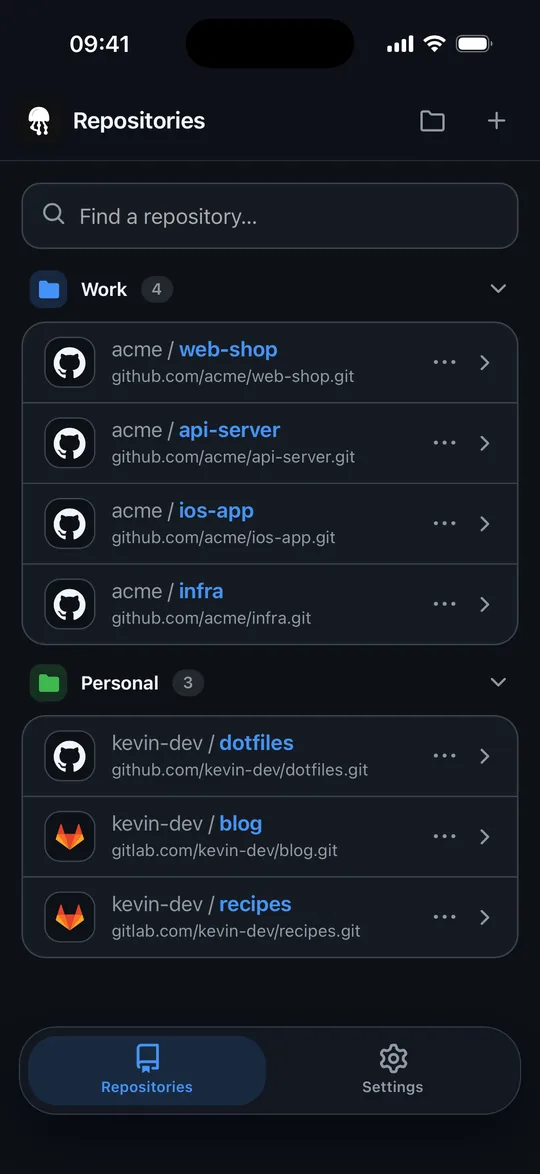
GitHub, GitHub Enterprise, GitLab, self-hosted GitLab or any Git URL – over HTTPS with an access token or over SSH. With live progress, organised in groups.
acme/web-shopacme/api-serverkevin/dotfiles
Git client for iPhone
Clone your repositories, edit code, commit and push – and keep an eye on pipelines, pull requests and issues. GitHub, GitLab and your own servers. No account with us, no tracking.
A full-featured Git client built for iPhone – fast, private and straight to the point.
GitHub, GitHub Enterprise, GitLab, self-hosted GitLab or any Git URL – over HTTPS with an access token or over SSH. With live progress, organised in groups.
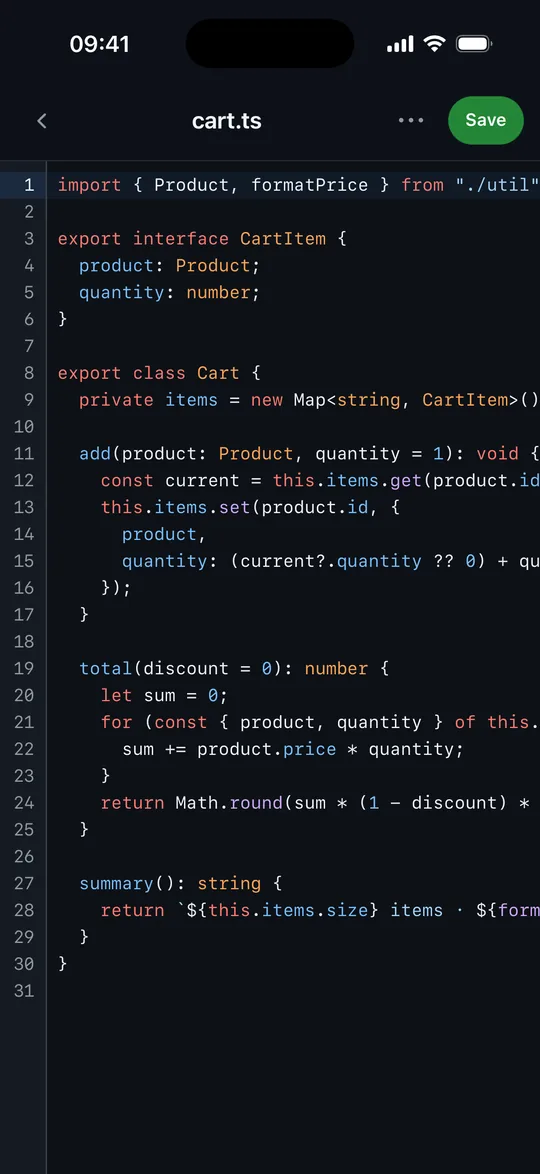
Syntax highlighting for the most common languages, find & replace, go to line and a symbol bar for coding on a phone.
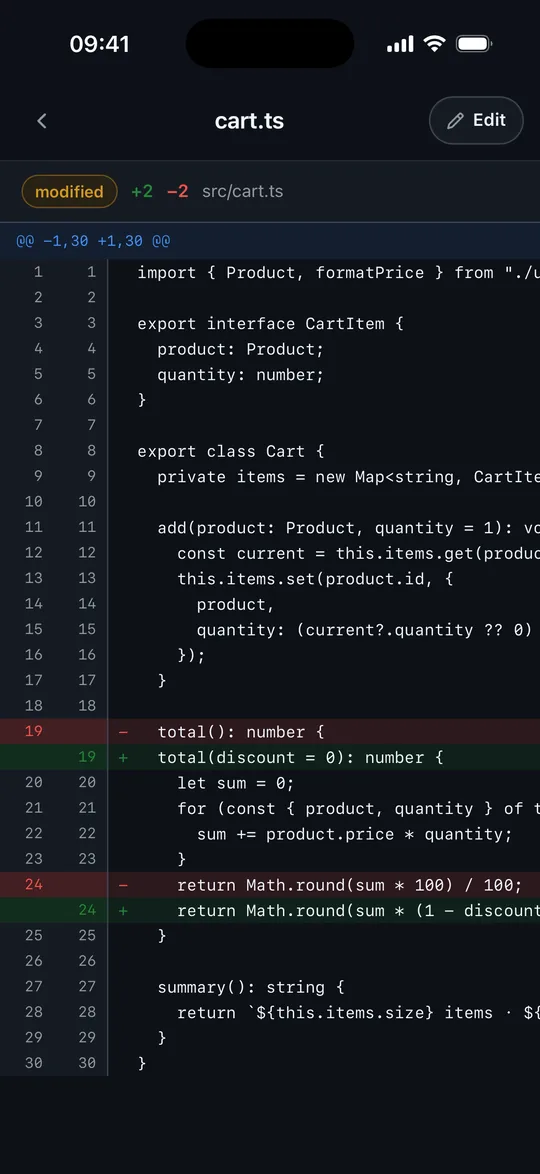
Per-file diffs, commit and push in one tap, pull, branches, history, revert and merge conflict resolution.
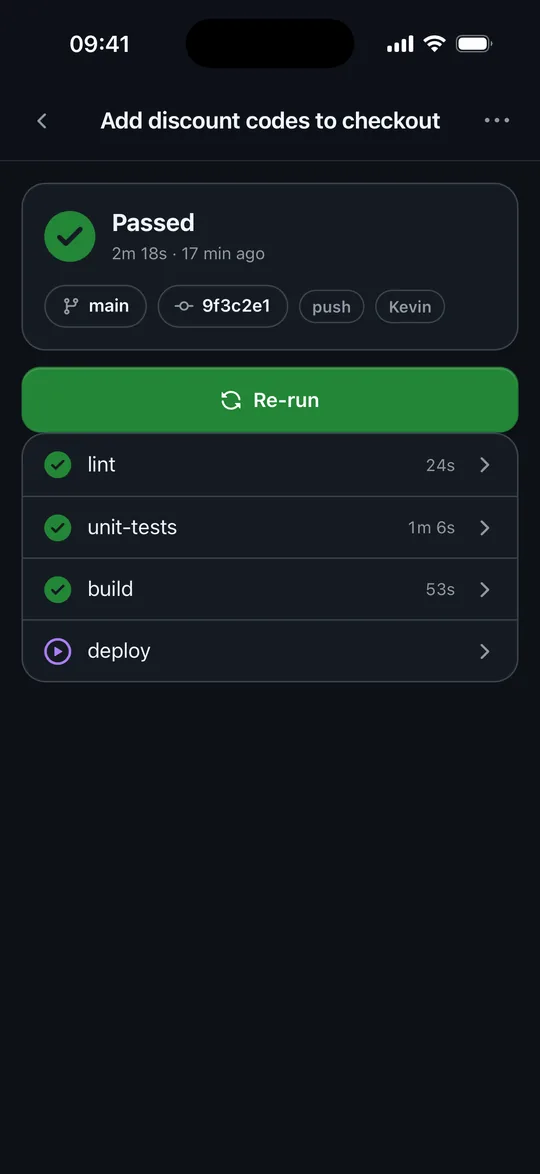
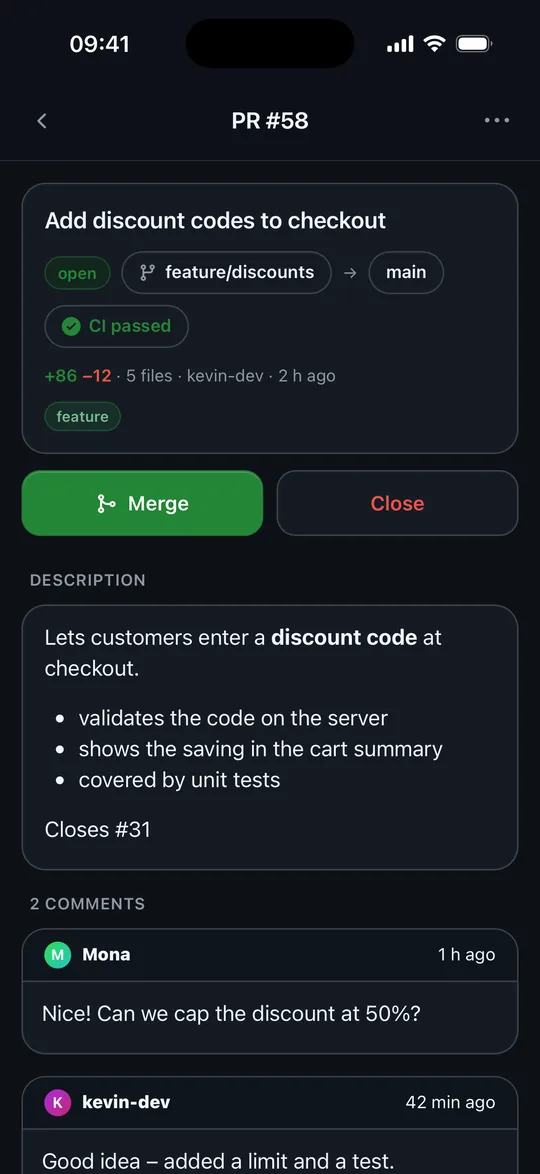
GitHub Actions and GitLab pipelines with logs, re-run and cancel. Read, comment on and merge pull / merge requests. Handle issues.
Your repositories also appear in the Files app under GiCode, so other apps can work with them.
No GiCode account, no analytics, no ads. Access tokens and your SSH key live in the iOS Keychain.
Syntax highlighting, find & replace and a symbol bar – made for your thumbs.
Review every change line by line, commit and push in one tap and resolve merge conflicts right on your phone.
GitHub Actions and GitLab pipelines with jobs and logs – re-run or cancel when something hangs.
Read, comment on and merge pull / merge requests and handle issues – without opening your laptop.
5 repositories and 2 accounts. All features included.
Once, with no payment and no subscription.
One-time purchase through the App Store: unlimited repositories and accounts. No subscription.
A newly added location in the Files app is disabled by iOS at first.
Open the Files app → Browse and choose the GiCode entry with the jellyfish icon under Locations. Tap Activate when asked “Activate GiCode?”. This is only needed once.
In the app, Settings → Storage & security → Files app takes you there. If there are two entries called GiCode, the one with the other icon is a leftover from an older developer version.
GiCode signs in with a personal access token.
GitHub: Settings → Developer settings → Personal access tokens. The “repo” scope is enough; add “workflow” to re-run Actions.
GitLab: Preferences → Access Tokens, scope “api” (at least “read_api” and “write_repository”).
In GiCode: Settings → Add account, choose the provider, paste the token. The token is stored in the iOS Keychain and only leaves your device towards that service.
Yes. When adding an account choose “GitHub Enterprise” or “GitLab (self-hosted)” and enter the server address. The server must be reachable over HTTPS.
Settings → SSH key → Generate key (or import an existing one). Then add the displayed public key to GitHub (Settings → SSH keys) or GitLab (Preferences → SSH Keys). Keys with a passphrase are not supported.
GiCode remembers an SSH server's key the first time it connects and warns if it differs – this protects against man-in-the-middle attacks. If the server was legitimately reinstalled, go to Settings → Trusted SSH servers and forget the stored keys.